Digital art software has transformed the creative world. From concept art and illustrations to comics, animations and NFTs artists now rely on powerful digital art software to give their ideas a life. No matter if you’re a beginner exploring drawing tablets or a professional illustrator looking for advanced tools, choosing the right digital art software will completely change your workflow. In this complete guide we’ll explore the best digital art software, compare their features and share practical tips to help you get started or level up your digital art journey.
Digital art software are apps made for sketching, coloring, painting, editing and creating artwork on computers or tablets. Instead of real-world tools such as pens, paint or canvas they have features like layers, undo options and custom brushes.
Digital art software serves a range of purposes:
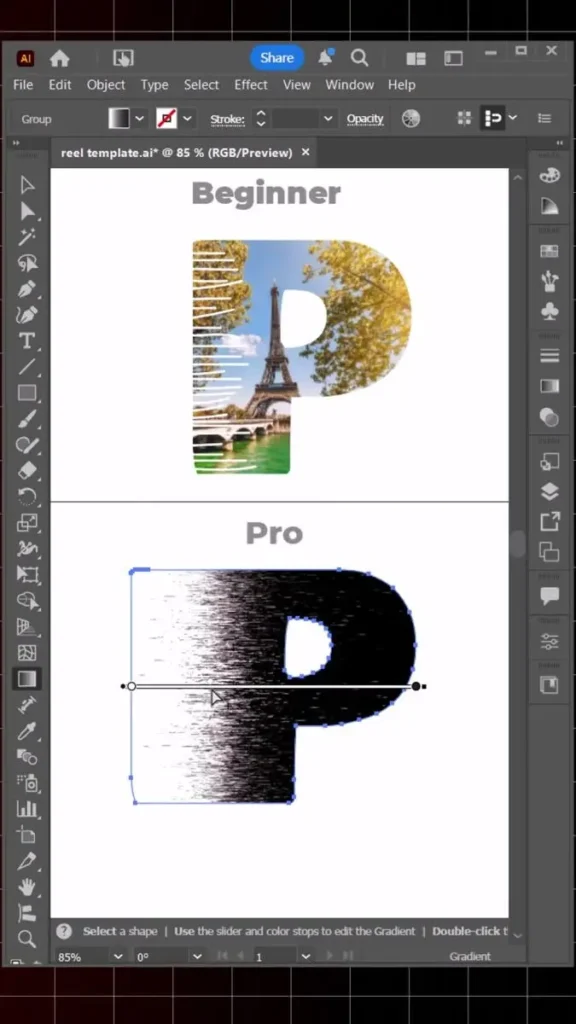
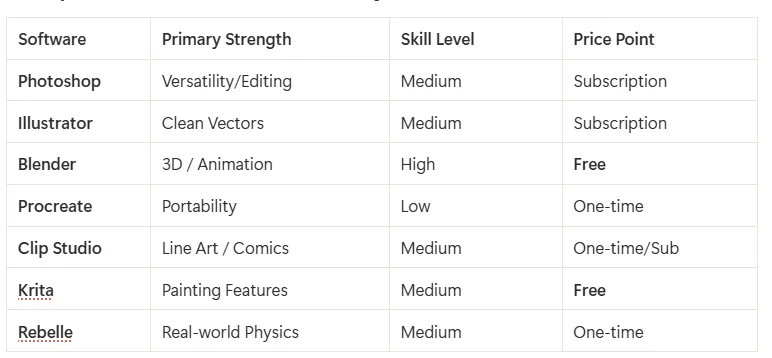
Vector art gets shaped best in Adobe Illustrator, standing as the go-to tool for creators. Instead of forming images from pixels like regular apps do, it builds pieces using lines defined by math – so sizes grow bigger or smaller while staying sharp. Because of this method, work such as logos, branding, typography and print design works flawlessly. When working with design, designer often likes it for the Pen Tool because it allows exact control. Clean outcomes also come from using the Shape Builder without losing detail.
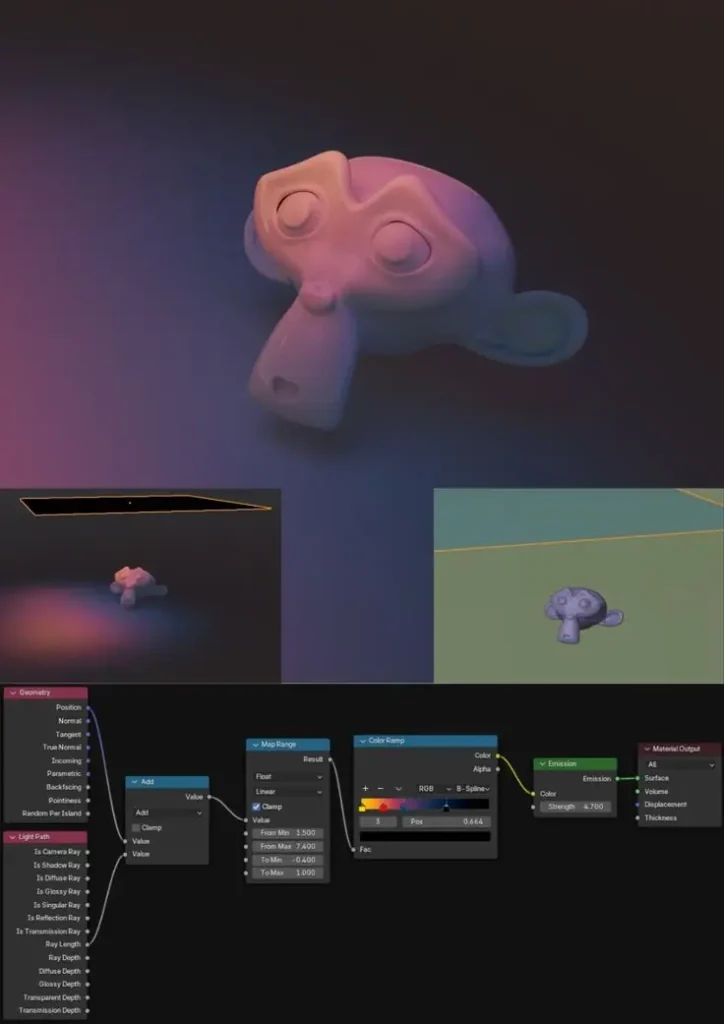
Blender has completely transformed the world of 3D art and animation. IT makes that possible through an open-source 3D creation suite built for modeling, sculpting, animation, rendering plus handling video editing. Artists use Blender to create everything from game things to full animated films. Its reach goes far beyond studios, reaching anyone with an idea and a keyboard. Thanks to its powerful rendering engines such as Eevee and Cycles, it produces everything from lifelike scenes to bold illustrations. What stands out for this tool is how quickly artists now choose it over older options. That rise alone places it among today’s most dynamic and modern digital helpers.
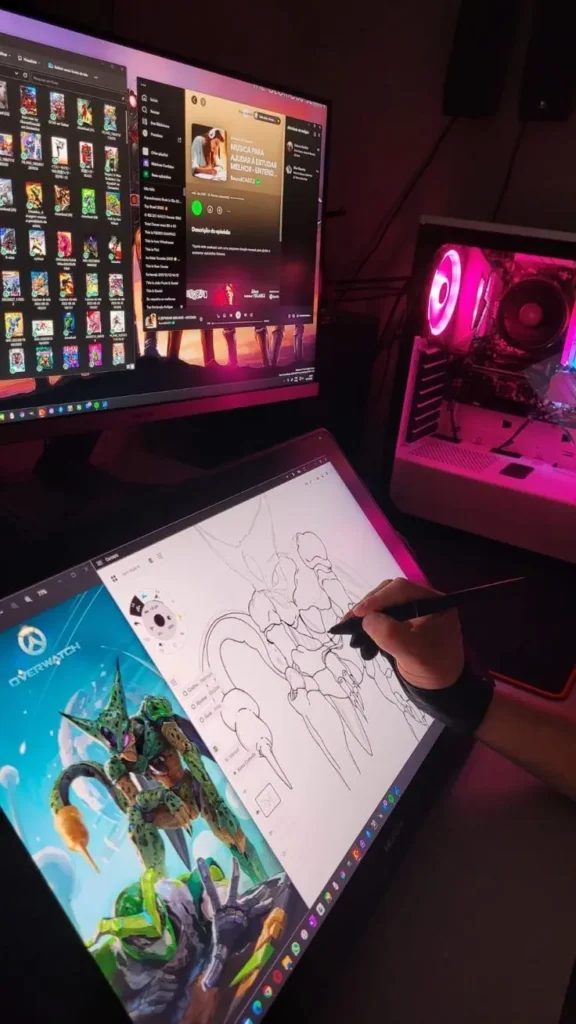
What once felt limited now feels possible, thanks to Procreate reshaping how people can easily acces professional drawing studio on tablets or iPads. It’s known for its easy interface and smooth performance and it allows artists to sketch, paint and illustrate with ease. Its design makes sense right away, moving confidently away from basic sketching tools. The app supports high-resolution canvases, custom brushes and time-lapse recording. Also, its one-time purchase model making it especially attractive to beginners and freelance illustrators.
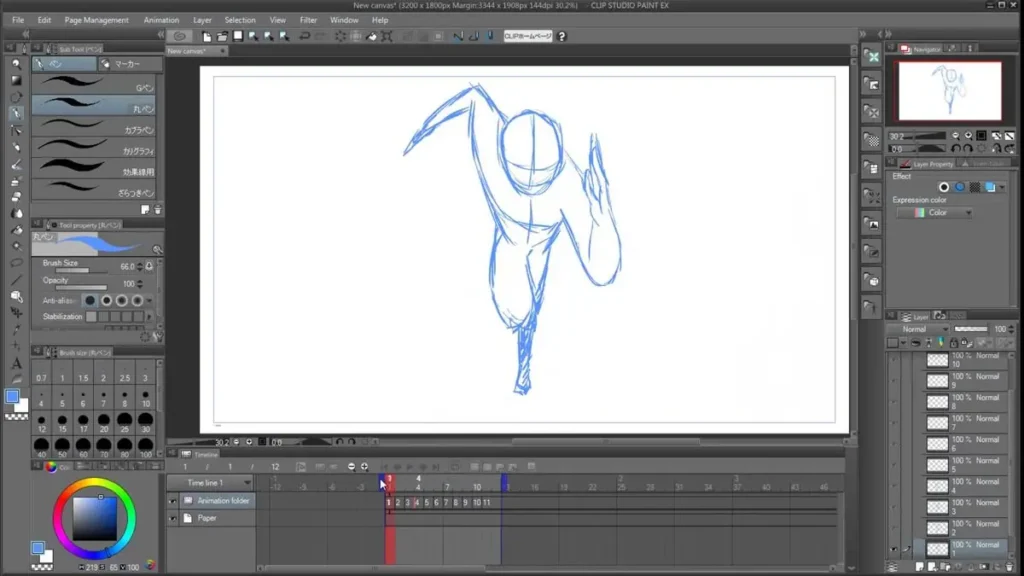
Clip Studio Paint is highly popular among comic and manga artists. It offers specialized tools for panel layouts, perspective rulers, and inking stabilization. The software also includes 3D pose models to help artists draw accurate anatomy and dynamic scenes. Its brush responsiveness makes it ideal for clean linework and detailed illustrations.
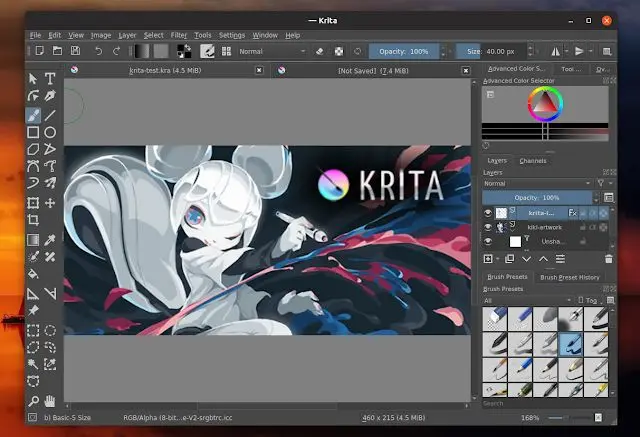
A tool built for creators – Krita is a free and open sourced painting program designed specifically for digital artists. Its core strength lies in a realistic brush behavior engine, customizable workspace, and basic animations fit inside its design too. New to vector work or digital drafts? The beginner community likes to use this tool for learning because it’s free also it competes closely with paid software in terms of painting abilities
This tool is built by Escape Motions and is known for its incredibly realistic watercolor and acrylic simulation. The paint spreads, blends, and dries exactly how real paint does on canvas. Artists who love traditional media are choosing Rebelle because it delivers one of the most authentic painting experiences in digital form.
This version of Clip Studio Paint called Pro, is built for illustration and basic comic pages. Inside the tool you will find powerful inking tools, brush stabilization and vector layer options. While it lacks some advanced animation features found in higher editions but still artists often find it does everything they need without extra clutter.
Whichever tool you choose, build strength in these core areas:
Every now and then, save what you’ve done – this keeps your work safe from being lost.
Each digital art software has a unique strength. Photoshop and Illustrator lead the pack when professionals need reliable tools. Over in 3D modeling, Blender stands ahead of the rest. When it comes to being light on storage, Procreate takes the lead. Fans of comics find their go-to in Clip Studio Paint. New learners can start exploring no cost at all with Krita. Then there is Rebelle they make old-school paint textures feel alive in digital form. A softwarefits well or ultimately depends on your artistic goals, budget and preferred workflow.
Seven rules for drawing often mean looking at perspective, proportion, anatomy, light & shadow, composition, gesture and form. Artists who rely on them make pieces look realistic and balanced.
Photoshop by Adobe stands out from others such as Procreate or even Clip Studio. Blender works differently also Krita feels familiar to some users.
The rule suggests that seventy percent of your artwork should focus on one elements (color, value or detail) while thirty percent work supports it. By doing this you will get a visual balance and prevent clutter.
Art often uses three core ideas refer to Composition, Contrast and Creativity.